Enable sound in the Linux Subsystem in Windows 10
---date: May 10, 2017
tags:
- WSL
language: English
---
This post is more than 8 years old. If this is a technical post, the post will most likely not working, but feel free to try it and see if it works.
Linux Subsystem of Windows is awesome, but it seems missing something… Yes, it misses sound, and several apps I am developing requires the sound to be played. Luckily, someone have found a solution to solve this problem by creating a link of pulseaudio between Windows 10 and Linux Subsystem. Here I got a summary of the solution, since the original is a mess to be read.
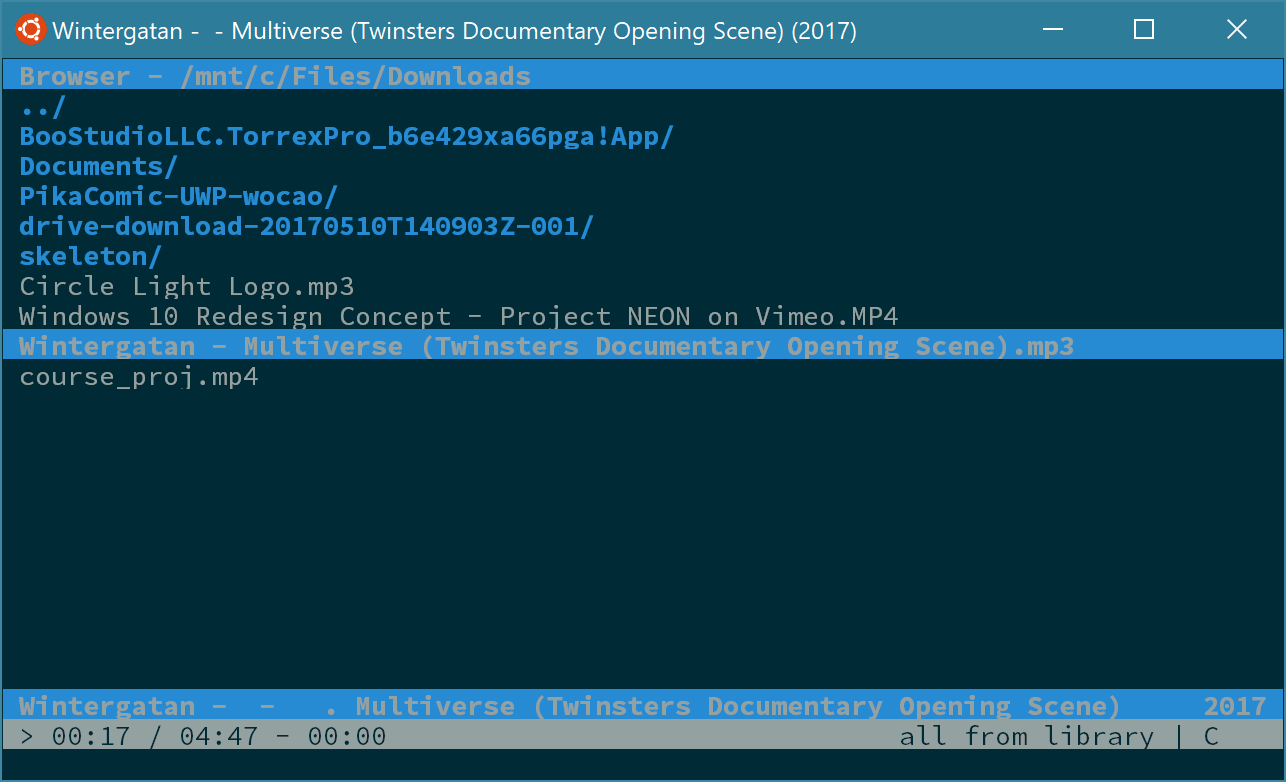
On the Linux Subsystem side:
- Add repository by command
add-apt-repository ppa:aseering/wsl-pulseaudio - If you are running Ubuntu 16.04 instead of 14.04, open
/etc/apt/sources.list.d/aseering-ubuntu-wsl-pulseaudio-xenial.listand changexenialtotrusty - Install pulseaudio by command
sudo apt-get update && sudo apt-get install pulseaudio
On Windows side:
- Download PulseAudio here on Windows.
- Extract all the files to
%AppData%\PulseAudio. - Press Win+R, type
shell:startupand create a file namedstart_pulseaudio.vbewith following contents:
1 | set ws=wscript.createobject("wscript.shell") |
- Open
%AppData%\PulseAudio\etc\pulse\default.pa, and add this line to the end of the file:
load-module module-native-protocol-tcp auth-ip-acl=127.0.0.1 auth-anonymous=1 - Run
start_pulseaudio.vbeand do not allow ‘pulseaudio’ access to any of your networks sine it doesn’t need access.
Now everything is done. Enjoy the music!

