Start WSL application from Windows 10 Desktop
---date: May 10, 2017
tags:
- WSL
language: English
---
This post is more than 8 years old. If this is a technical post, the post will most likely not working, but feel free to try it and see if it works.
As we can actually install GUI application in the Bash on Windows 10, we sometimes also would like to start up these apps from the desktop. Actually,to start up the Linux application on desktop is actually pretty easy.
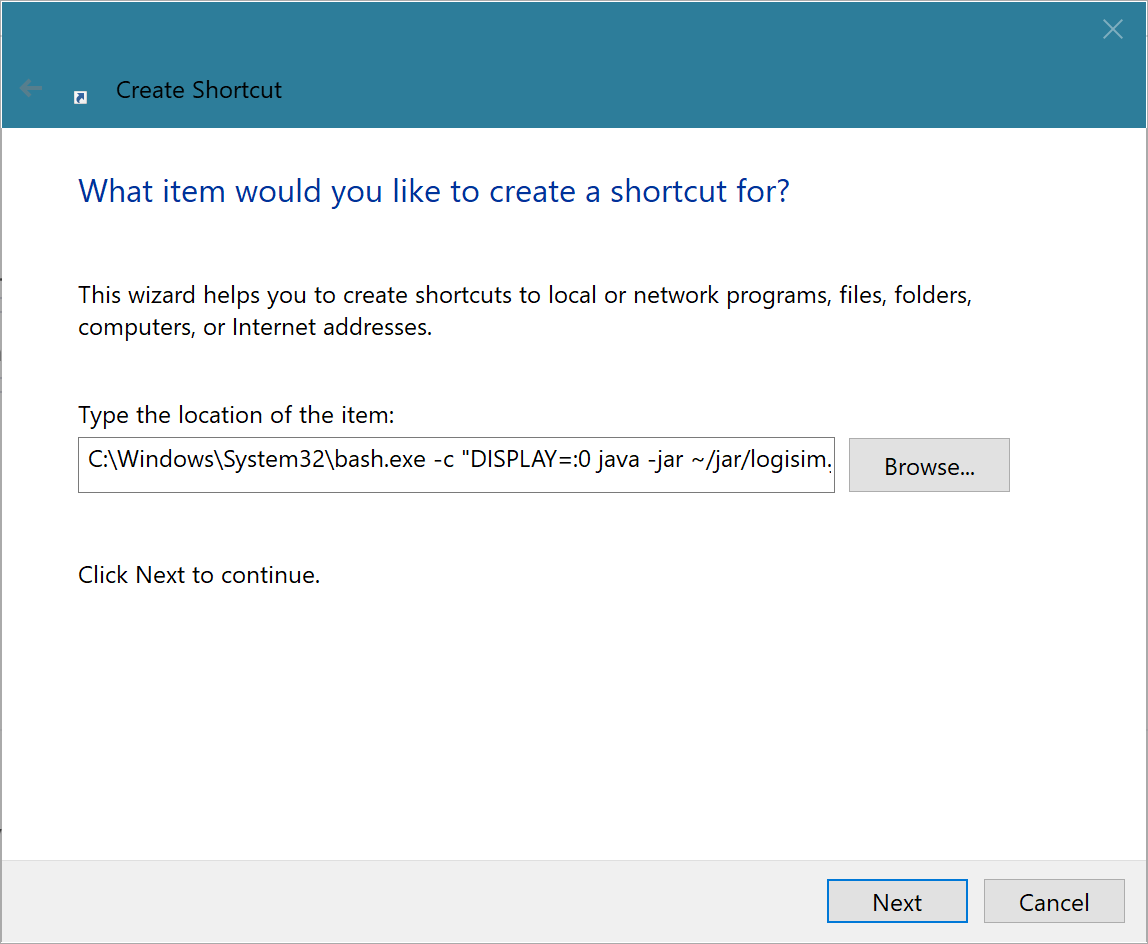
First, left click Desktop and select New->Shortcut. Then, in the address, type the following in the item location:
C:\Windows\System32\bash.exe -c "cd && DISPLAY=:0 command-to-execute"
Replace command command-to-execute to desired application. Next next and change the name to the application name. Click Finish and Boom! you completed creating a shortcut! now you can change the icon if you want.