Setup LAMP Server on Ubuntu on Windows 10 the Right Way
---date: Aug 17, 2017
tags:
- WSL
- PHP
- LAMP
language: English
---
I have tried to find a proper guide online to set up the LAMP environement on WSL, but most of them are incompelete or outdated, so here I decided to make a tutorial on how lamp can be properly setup on Bash On Windows aka WSL.
But wait… What is LAMP?
LAMP is a term for a software bundle, that is :
Linux Apache MySQL PHP
LAMP is commonly used as the dafult setup of most of the server, and there are more alternatives available to them. More specifically, a LAMP server structure contains a server operating system(Linux/Unix/FreeBSD), a http server(Apache/Nginx), a database management system(MySQL/MariaDB/Drizzle) and a scripting language(PHP/Perl/Python).
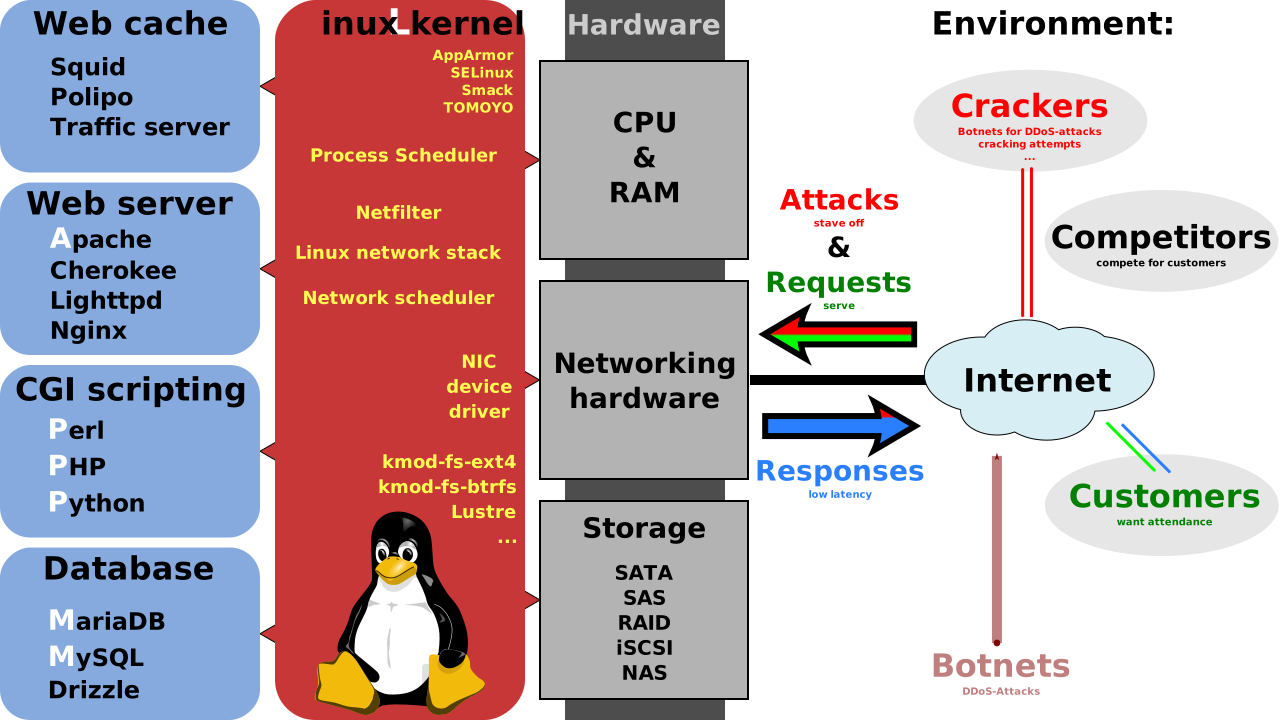
Let’s begin!
-
Keep everything up-to-date:
1
2
sudo apt-get update
sudo apt-get upgrade -
Install LAMP server:
1
sudo apt-get install lamp-server^
This will install Apache2, MySQL and Perl, but usually we use PHP, so we will install it later.
During the installation, MySQL will ask to set the default password forrootaccount. -
Install PHP:
1
2
3
sudo add-apt-repository ppa:ondrej/php
sudo apt-get update
sudo apt-get install -
Setup MySQL security option:
1
sudo mysql_secure_installation
something like this will be popup:
1
2
3
4
5
6
7
8
Securing the MySQL server deployment.

Enter password for user root:

VALIDATE PASSWORD PLUGIN can be used to test passwords
and improve security. It checks the strength of password
...
I suggest you to choose wisely, I mean, really.
-
Change the listening port if you want:
If you are also using IIS on Windows, you might also want to change the port. to change the port, change the linelisten 80tolisten <the port you want>in file/etc/apache2/ports.conf. -
Start server:
1
2
sudo service apache2 start
sudo service mysql start

